Getting recipes in
Share a YouTube recipe to the iPhone app
On a YouTube recipe video, tap Share and choose Recipes We Share. The app opens and turns the recipe in the description into an editable recipe.
55 sec · no sound needed: every step is on screen
How it works
- Share a YouTube video to the Recipes We Share iPhone app and the recipe in its description becomes ingredients and steps you can edit.
- Imported, pasted and AI-built recipes start in your personal recipes; one tap adds them to the family cookbook.
Step by step
- 1
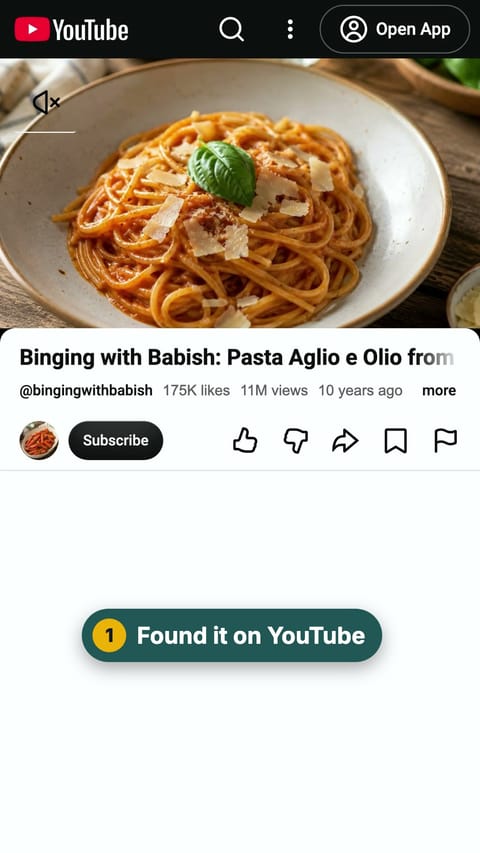
Found it on YouTube
On YouTube, open the recipe video you want to keep.
- 2
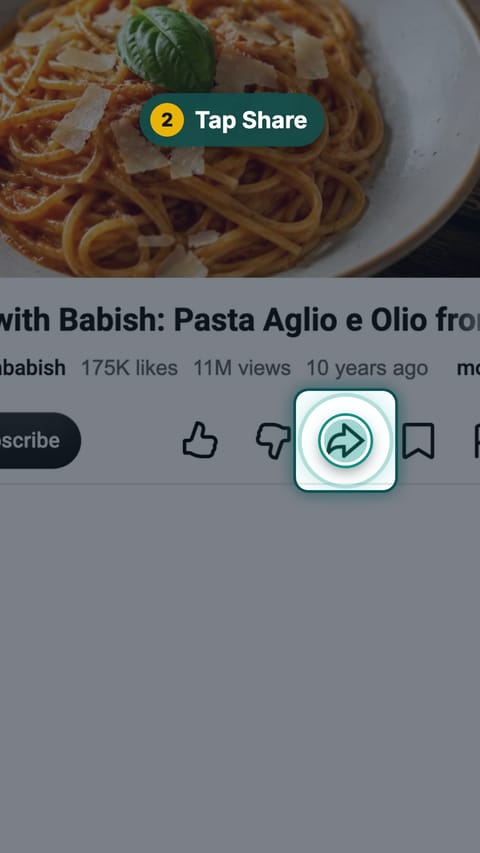
Tap Share
Tap YouTube's Share button.
- 3
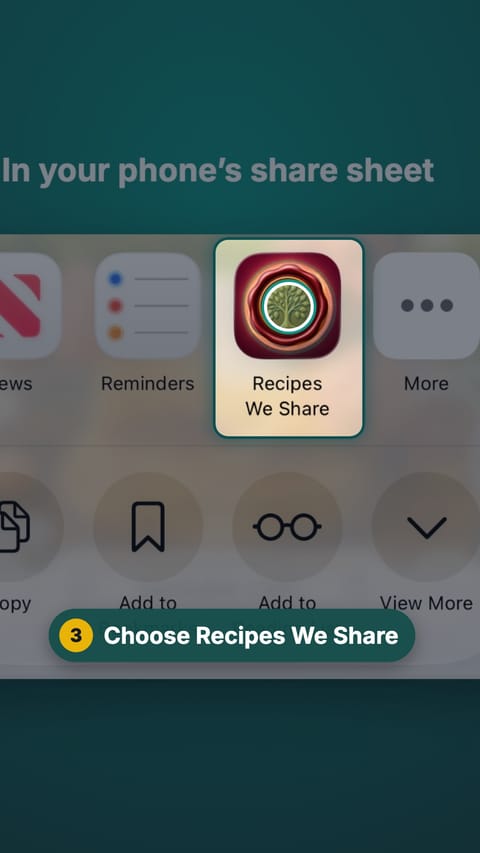
Choose Recipes We Share
In the share options, choose Recipes We Share.
- 4
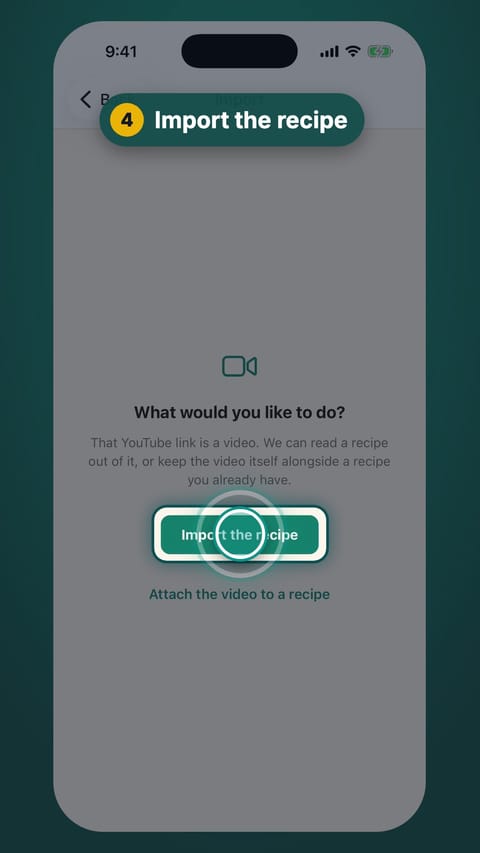
Import the recipe
Recipes We Share opens with the link. Tap Import the recipe.
- 5
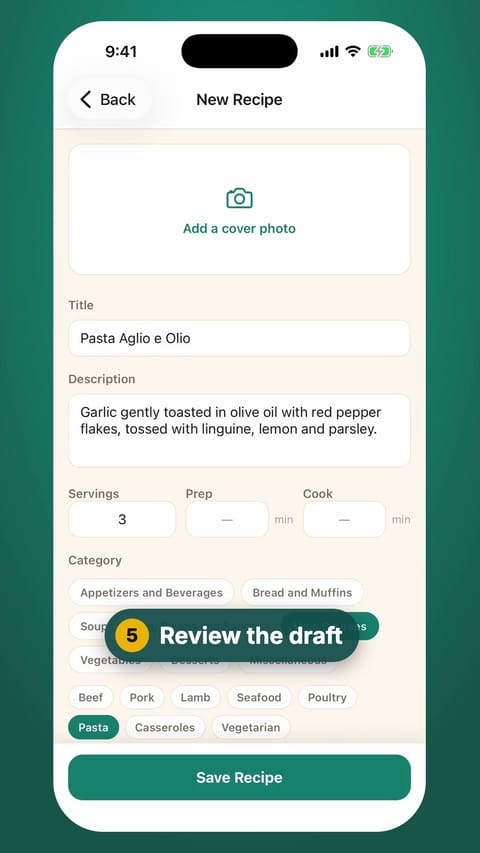
Review the draft
The recipe opens as a draft. Check the title, category, ingredients and steps.
- 6
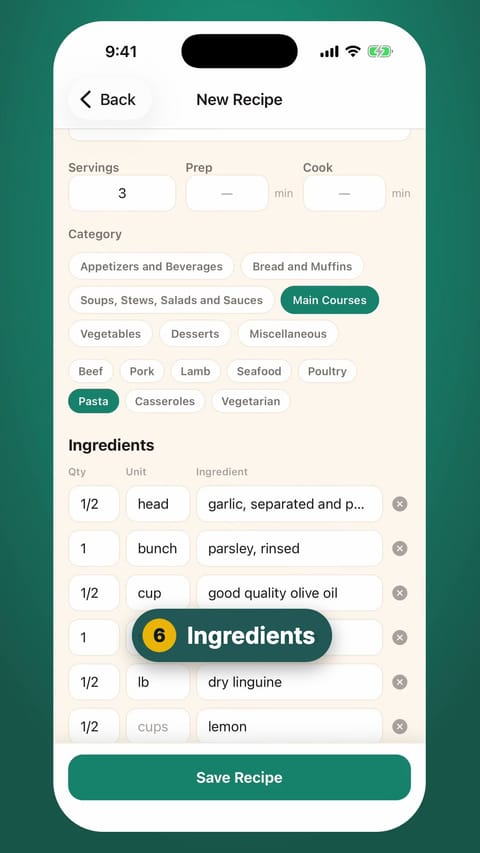
Ingredients
Scroll down to the ingredients.
- 7
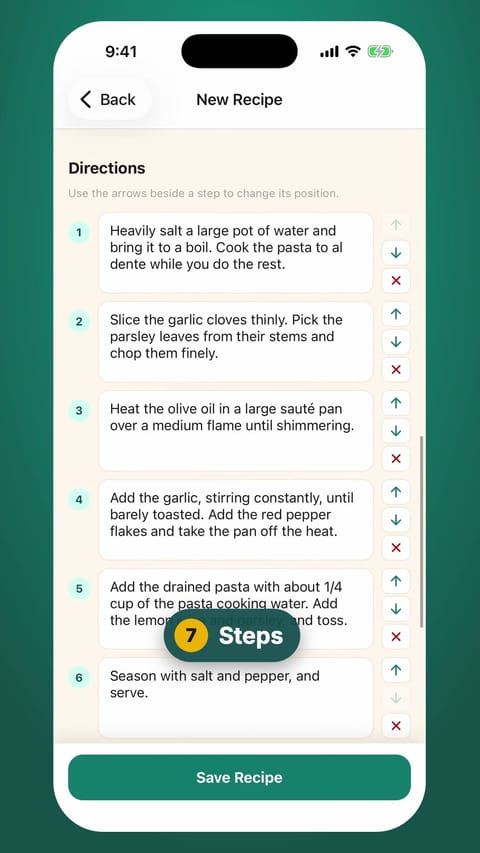
Steps
Keep scrolling to the numbered steps.
- 8
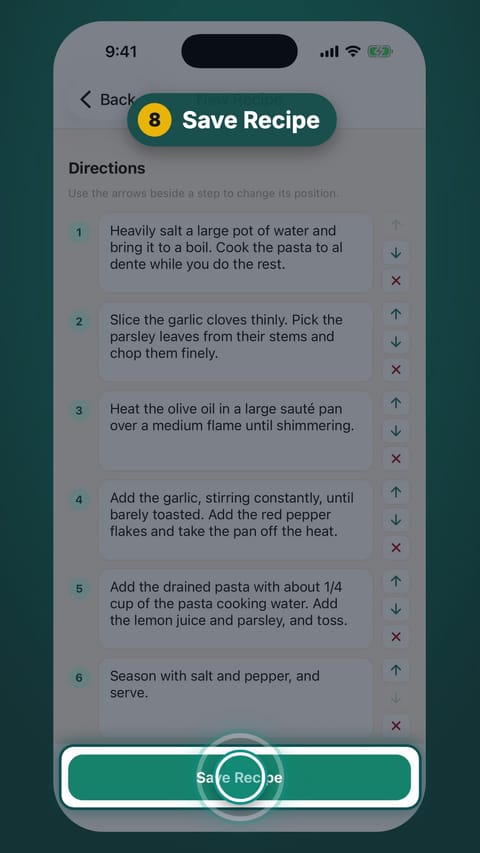
Save Recipe
Tap Save Recipe.
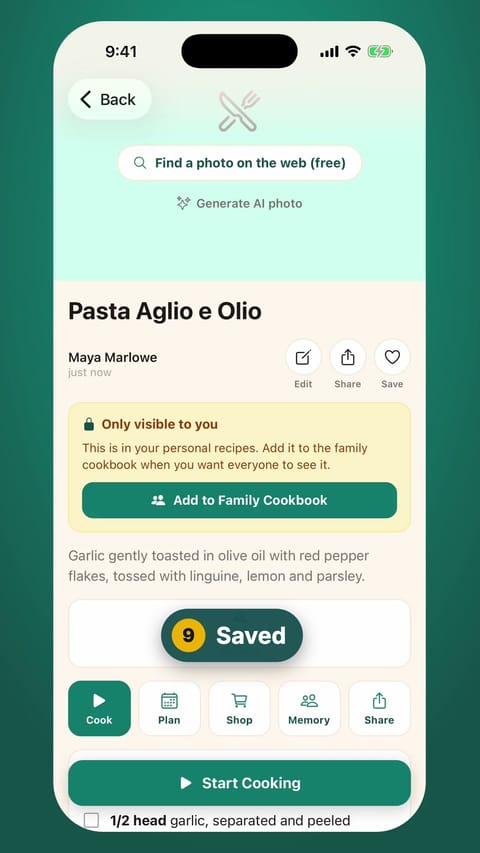
- 9
Saved
The recipe is saved to your personal recipes first.
- 10
Share with the family
Tap Add to Family Cookbook so the whole family can see it.
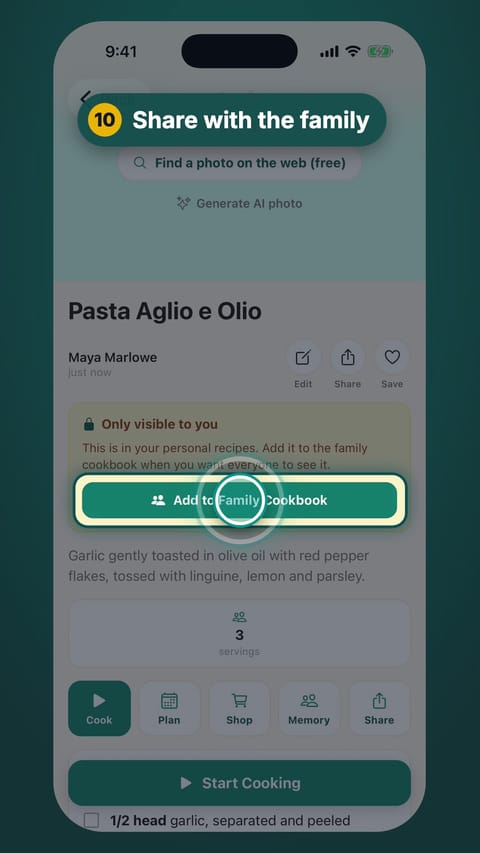
The video’s recipe is saved in the family cookbook, with ingredients and numbered steps.
More guides like this
Scan a handwritten recipe card
Photograph Nonna’s handwritten card and it becomes a typed recipe with ingredients and steps, credited to her and shared with the family.
Save a TikTok recipe on the website
Copy a TikTok’s link and paste it into Recipes We Share. The recipe in the caption lands in your cookbook. Every line is yours to edit.
Import a recipe from anywhere on the web
Paste a link from a recipe site, TikTok, YouTube or Instagram. You get just the recipe, ready to edit.
Paste a recipe someone texted you
Copy a recipe out of a text, email or note, paste it in, and it’s sorted into title, ingredients and steps.
Start your family cookbook
Save the recipes your family actually cooks, from anywhere, in one place.